The short version
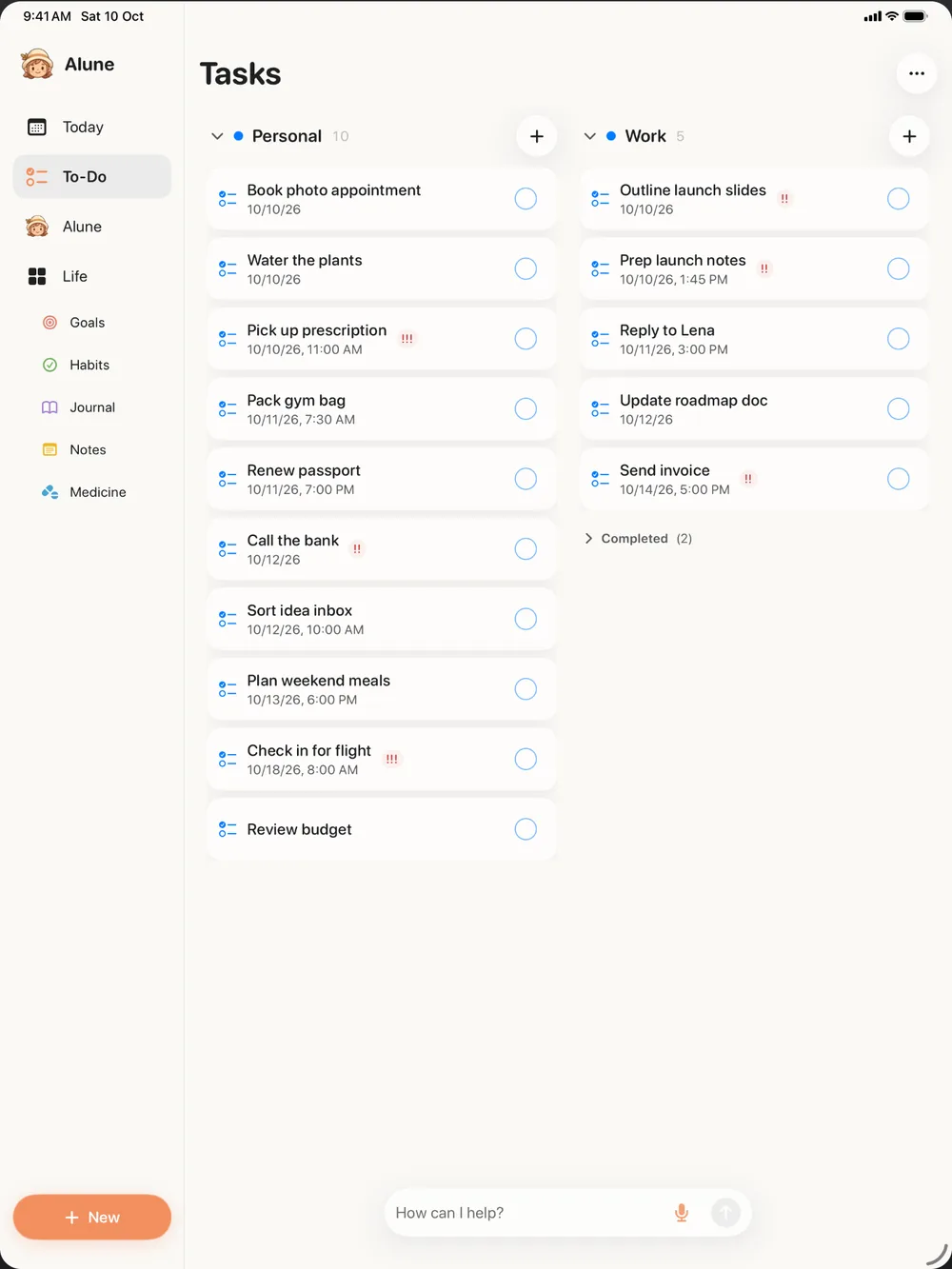
Alune runs on iPhone, iPad, and the web at app.aluneapp.com. If you sign in, your planner syncs between all of them, and sync is free. If you do not sign in, Alune still works; your planner simply stays on the device you are using.
This page explains how accounts work, what gets synced, where it is stored, and how to delete everything if you change your mind. The full legal version is in the privacy policy.
Accounts are optional
You can sign in with Apple, Google, or an email and password. On iPhone and iPad, signing in is available in Alune 1.1.8 and later. On the web, the Account page handles it.
There is no separate subscription for sync and no limit on the number of devices you sign in on. Sync is part of the free plan. Alune Pro, if you have it, is bought in the iPhone or iPad app and follows your account, so it also works on the web once you sign in there. You cannot buy Pro on the web.
What syncs
When you are signed in, Alune keeps a copy of your planner in your account so it looks the same on every screen. That includes:
- Tasks and To-Do lists
- Habits and habit logs
- Goals and milestones
- Notes and journal entries, including mood and energy
- Medicines and dose logs
- Your library of books and media, and your display name
Your chat history with the AI assistant and the assistant's memory are not synced. They stay on the device where you used them.
Your calendar and reminders on the web
On iPhone, Alune works with Apple Calendar and Reminders directly, as described in Alune's Apple Calendar and Reminders guide. The web cannot read those apps on its own, so your iPhone does it for you.
If you turn on Show my calendar and reminders on the web from your iPhone, that iPhone shares the calendars and reminder lists you have chosen to show in Alune. You will see them in the web app and can edit them there. Those edits are applied to your real calendar by the iPhone the next time it syncs.
Only calendars and lists you show in Alune are shared. Alune does not upload attendees, organizers, attachments, or reminder subtasks. Event notes are uploaded as written, so keep in mind that notes sometimes contain meeting links or passcodes. To stop sharing, hide those calendars in Alune, turn the setting off, or sign out.
Where your data is stored
Synced content is stored with Alune's hosting provider in the United States. It is encrypted in transit and at rest, and each account's data is kept separate. It is not end-to-end encrypted, and it would be misleading to call it that.
Alune uses synced data only to provide sync. It is not used for advertising, it is not used to train AI, and it is not sold. Medicine and dose logs are health data, and they are used only to keep your planner in sync. For the bigger picture of what stays private, see what a private AI planner should mean.
Signing out
On iPhone and iPad, when you sign out you choose whether to keep your planner on that device or remove it. In the web app, signing out always removes your data from that browser, which is handy on a shared or work computer.
Deleting things, and deleting your account
When you delete an item, it is removed from your synced data right away and permanently erased from Alune's servers within 90 days.
To delete your whole account, go to Settings > Account > Delete Account on iPhone or iPad, or Account > Delete Account on the web. That erases your account and all synced content, and signs you out everywhere. Planner data stored on a device stays there until you delete it or remove the app. Deleting your account does not cancel an App Store subscription; manage that in your Apple subscription settings. If you no longer have the app, the steps on the delete account page explain how to ask by email.
Getting set up
If you already use Alune on iPhone, update to the latest version, sign in from Settings, then open app.aluneapp.com on your computer and sign in with the same account. If you are starting fresh, you can begin on the web; read how the web app works first if you want the full tour.